Tutorial 1 of 8
Your first inspection in five minutes
Beginner 5 min
Add a few domains, run the default suite, and read the scorecard, the key figures and the first findings. No account, nothing to install.
Signalhouse runs in your browser. Your project is saved automatically on this device (IndexedDB); the checks themselves run on usefulweb's server through the same public tools you find on the tool pages.
1. Add domains
Click Launch Signalhouse. On a first visit the Overview shows a short Start an inspection card with templates — nothing pops up and nothing runs yet.
Type a domain into the box at the top of the Targets list (for example example.com) and press Enter or Add. To add many at once, press N (or the + button next to Targets) and paste:
- one domain per line,
- a CSV or TSV table with a
domain,hostorurlcolumn (optionallabelandtagscolumns), or - any text with links and e-mail addresses — Signalhouse extracts the host names.
The preview tells you how many domains will be added, which were duplicates and which lines were skipped and why. Nothing is checked until you press Run.
2. Choose the checks
A new project starts with a quick suite: Uptime & headers, DNS & certificate, Mail security, HTTP & technology, CDN & caching and IPv6 readiness. Uptime & headers runs HeaderLens: it requests the site from every probe region at once and tells down (no answer anywhere), partial outage (some regions fail) and up, blocks bots (a 401/403/429 or challenge page for automated probes) apart, checks the TLS certificate per region, flags slow regions and rates the security and caching response headers (HSTS, CSP, X-Content-Type-Options …) — missing ones become findings with the reason. Open Project → Project settings… to add more — Global DNS, Certificate history, Domain history, BGP routing, Network (AS), Outage signals, Accessibility snapshot, AI readiness, Page changes or Security configuration. The dialog shows how many checks a full run means and how long it takes.
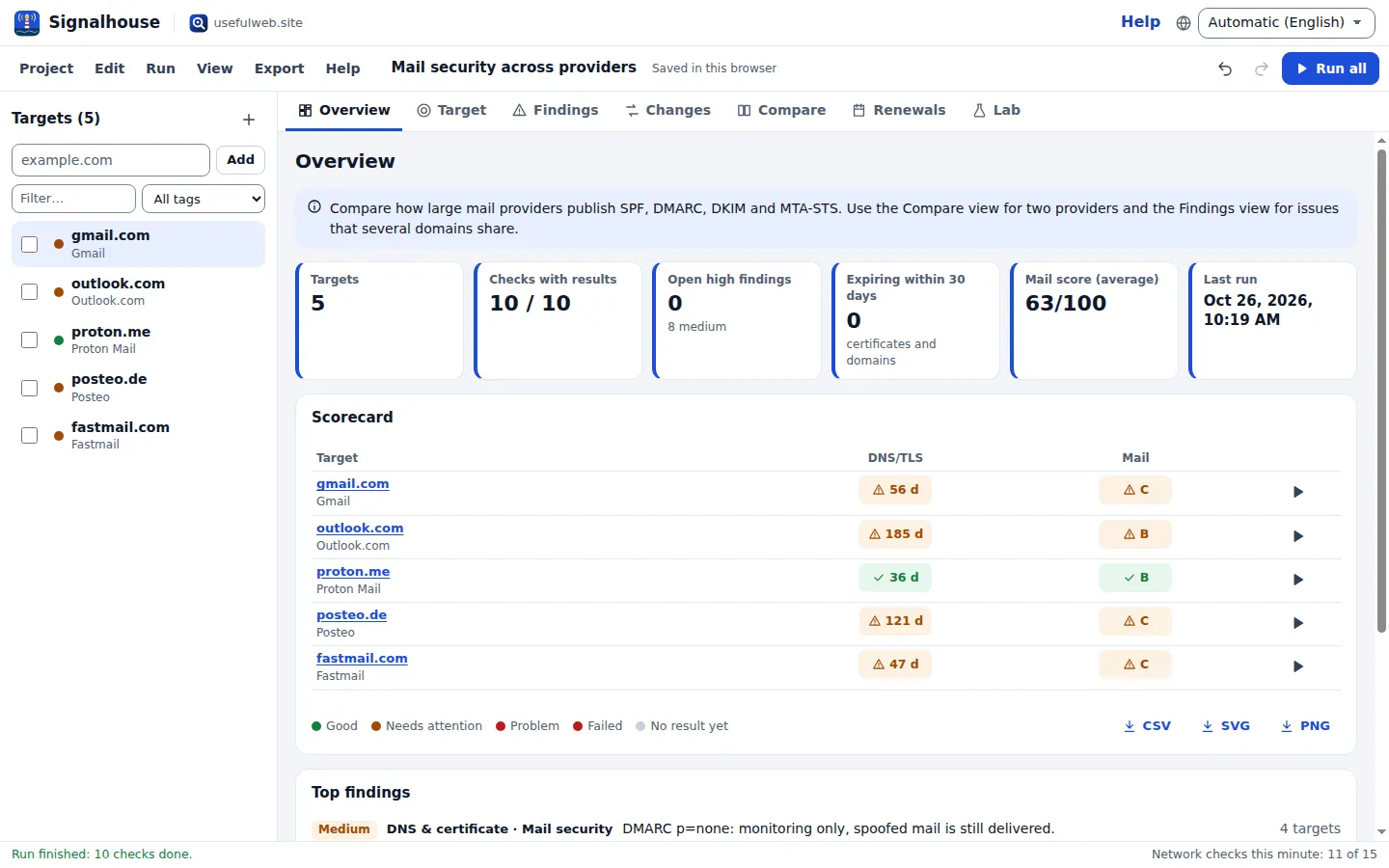
3. Run
Press Run all (or Ctrl+Enter). A progress strip appears above the view: checks done, failed checks and the remaining time. Network checks are limited to 15 per minute per visitor, so a big run takes a few minutes — Signalhouse paces the queue and waits automatically when the limit is reached. You can keep working, switch views or add targets meanwhile. Pause, Stop and Details are in the strip.
4. Read the scorecard
The Scorecard has one row per target and one column per check. Each cell shows the most useful short value: a grade (B), a score, the days until the certificate expires (86 d), a cache verdict or the number of high findings. The colour follows simple rules:
- red — a high-severity finding, grade D or F, an expired or untrusted certificate, an ongoing outage,
- amber — medium findings, grade C, a certificate within your warning window,
- green — nothing that needs attention.
Click a cell to open that check on the Target view, with the tool's metrics, the facts Signalhouse keeps (records, issuer, technologies …) and every finding with its suggested fix.
5. Keep it
The project is already saved in this browser — the next visit reopens it. Use Project → Save project file (Ctrl+S) for a backup, Share link… to hand a copy to someone, and Export for reports and tables.
Ready to try it?